• myHPcloud
  • One-Time Payment Plan
  • Support 
    • Download
    • Code Redemption
    • Help Center
  • About Us
  • …  
    • myHPcloud
    • One-Time Payment Plan
    • Support 
      • Download
      • Code Redemption
      • Help Center
    • About Us
    Sign Up
    • myHPcloud
    • One-Time Payment Plan
    • Support 
      • Download
      • Code Redemption
      • Help Center
    • About Us
    • …  
      • myHPcloud
      • One-Time Payment Plan
      • Support 
        • Download
        • Code Redemption
        • Help Center
      • About Us
      Sign Up

      Getting Started with HP Cloud

      Welcome to HP Cloud — your secure and reliable cloud storage solution designed to help you store, protect, and access your files anytime, anywhere. Follow the steps below to quickly set up your account and start using myHPcloud.

      Step 1: Create Your Account

      Getting started only takes a few minutes.

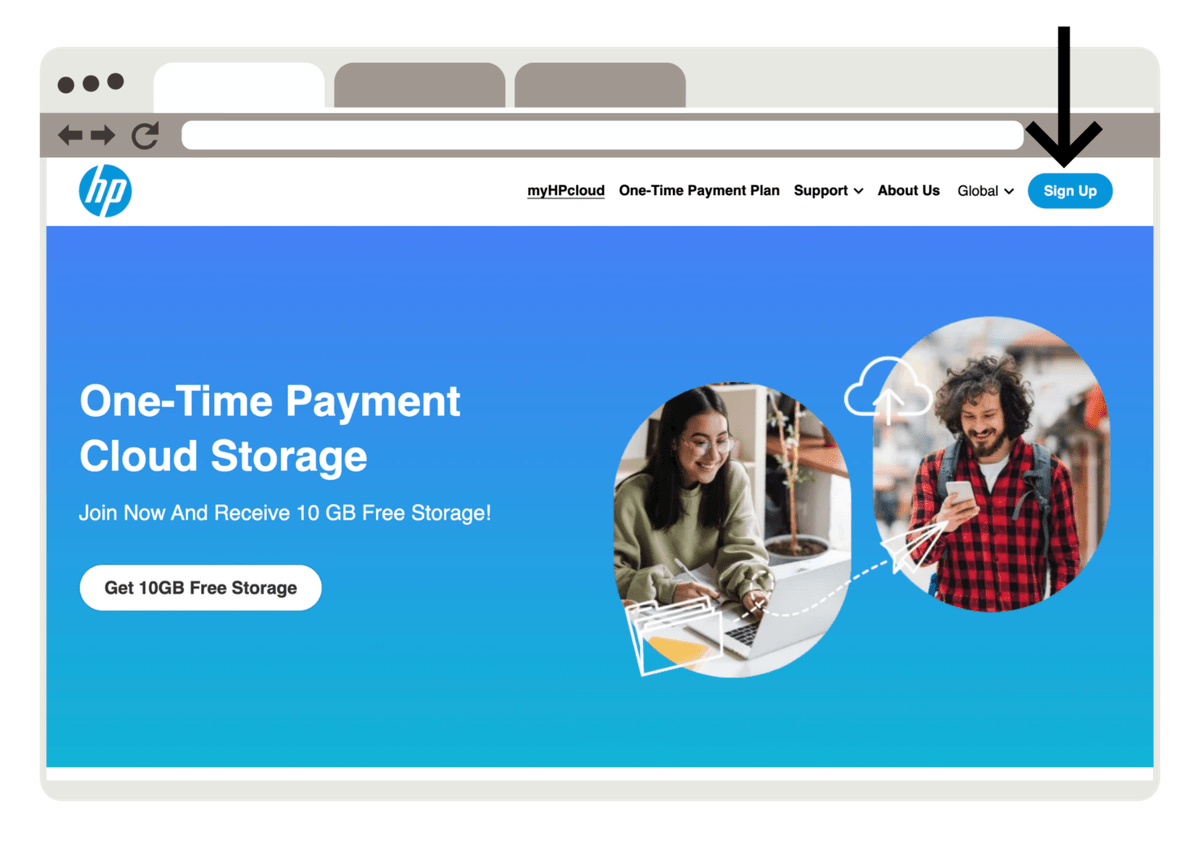
      1. Visit the myHPcloud website (www.myhpcloud.com).
      2. Click Sign Up.
      Section image
      1. Enter your email address and create a secure password.
      2. Verify your email using the activation link sent to your inbox.

      Once verified, your account will be ready to use.

      After activation:

      • Sign in using your registered email and password.
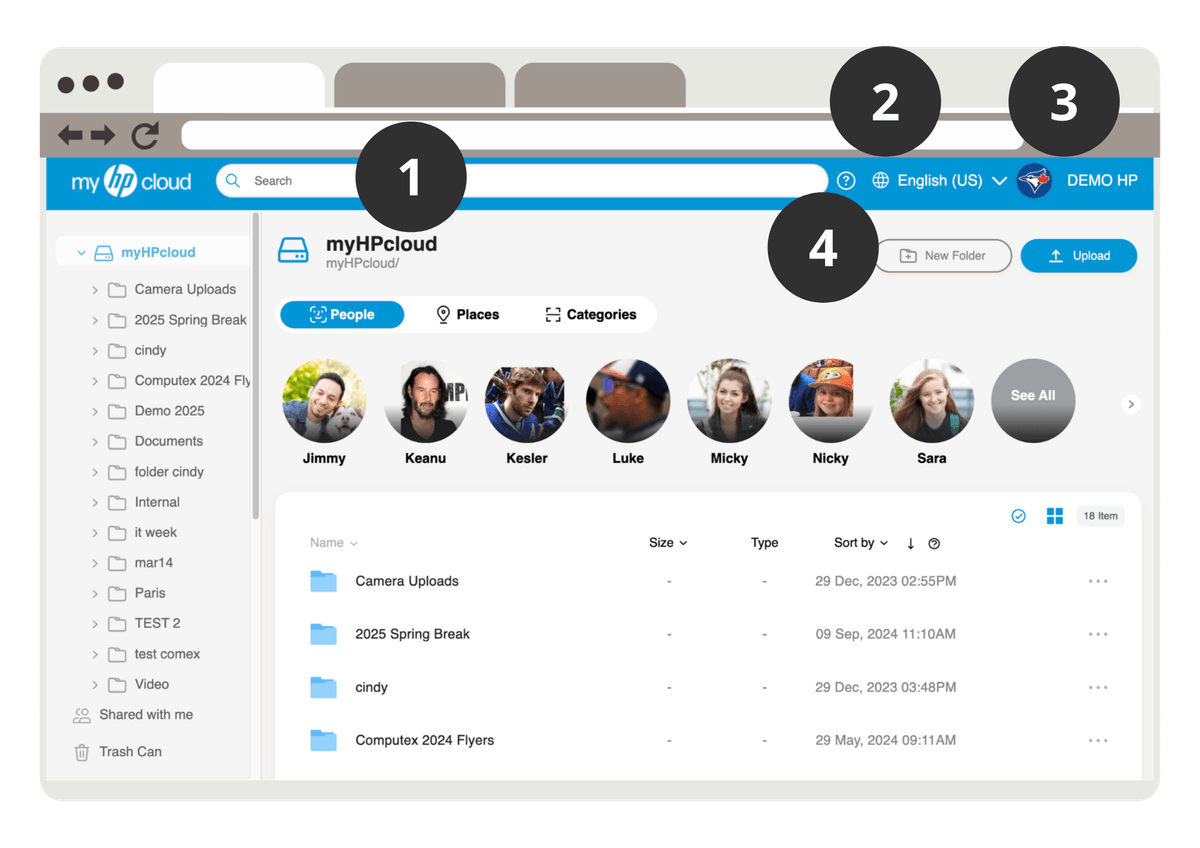
      • You will be directed to your HP Cloud dashboard, where you can manage files, storage, and account settings.

      The dashboard provides an overview of:

      1. Search Bar: Quickly locate your files by typing the file name in the search bar. Results appear instantly, helping you find exactly what you need.

      2. Change Language: Switch your dashboard to one of 9 supported languages: English, Spanish, French, Indonesian, Japanese, Korean, Vietnamese, Simplified Chinese, or Traditional Chinese.

      3. Profile Menu:

      Hover over your profile icon to access a dropdown menu with:

      • Upgrade Settings – Manage your storage plan
      • Family Sharing – Share access with family members
      • Privacy Policy – Review how your data is protected
      • Service Terms – View myHPcloud terms of use
      • Log Out – Sign out of your account

      4. New Folder & Upload Button: Easily organize your storage by creating new folders and uploading files directly to your account. Simply click New Folder to create a folder or Upload to add files.
      Section image
      Return To Help Center

      Previous
      Show Your Gratitude This Thanksgiving with a Gift That Lasts
      Next
      Plans & Subscriptions
       Return to site
      Cookie Use
      We use cookies to improve browsing experience, security, and data collection. By accepting, you agree to the use of cookies for advertising and analytics. You can change your cookie settings at any time. Learn More
      Accept all
      Settings
      Decline All
      Cookie Settings
      Necessary Cookies
      These cookies enable core functionality such as security, network management, and accessibility. These cookies can’t be switched off.
      Analytics Cookies
      These cookies help us better understand how visitors interact with our website and help us discover errors.
      Preferences Cookies
      These cookies allow the website to remember choices you've made to provide enhanced functionality and personalization.
      Save